
The fastest way to stop paying for streaming you don’t watch is a 60-minute audit: scan your bank statement and app-store subscriptions, cancel what you don’t use, and either set calendar reminders to stay on top of renewals or connect a subscription-manager app to automate the whole process going forward. A focused audit checking bank statements, app-store subscriptions, device subscription pages, and email receipts will surface most active streaming charges quickly.
Two paths get you there:
- Path A — DIY audit: Check your bank/card statement, App Store or Google Play subscriptions, and email receipts. Cancel directly through each service or its billing platform. Set a calendar reminder for every renewal date. Total time: under an hour.
- Path B — Subscription-manager app: Connect an app like Rocket Money or Hiatus to your bank account. Let it detect recurring charges automatically, then review and cancel from inside the app. Setup time: 15–20 minutes, with ongoing detection handled for you.
First action, right now: Open your bank or credit card app and search “Netflix,” “Hulu,” “Disney,” “Max,” “Paramount,” “Peacock,” and “Apple” to see exactly what you’re being charged and by whom.
Key Takeaways
The most effective way to manage streaming subscriptions is a 60-minute manual audit covering bank statements, app stores, device pages, and email receipts, followed by canceling at the correct billing source for each service.
| Point | Details |
|---|---|
| Start with your bank statement | Search for streamer names and recurring small amounts to identify every active charge and its billing source. |
| Cancel at the billing source | Canceling on the service’s website won’t stop charges billed through Apple, Google Play, Amazon, or Roku — cancel there instead. |
| Use an app for automation | Rocket Money and Hiatus auto-detect charges and offer cancel help; Bobby and TrackMySubs work without bank linking for privacy-conscious users. |
| Pause before you cancel | Most major services retain watchlists and history for months after cancellation; pausing stops billing without losing your data. |
| Boomtv as an alternative | Replacing multiple paid streaming services with a single Boomtv IPTV plan gives access to 6,500+ live channels and VOD without juggling separate subscriptions. |
Table of Contents
- How to manage streaming subscriptions in 60 minutes flat
- Where to find every streaming charge you’re paying for
- Which subscription-manager apps actually help you track and cancel?
- How to cancel major U.S. streaming services step by step
- How to cancel subscriptions billed through app stores, Amazon, Roku, and carriers
- Should you pause, downgrade, or cancel?
- What subscription-manager apps can actually see — and how to limit your risk
- DIY audit or subscription-manager app — which fits your situation?
- The subscription habits that actually stopped the waste
- Tired of juggling five separate streaming bills?
- Sources
How to manage streaming subscriptions in 60 minutes flat
Work through these steps in order. Most people finish in under an hour.
- Minutes 0–10: Scan your bank and credit card statements. Search for the names of every major streamer plus generic terms like “subscription,” “monthly,” and “annual.” Note the merchant name exactly as it appears — it tells you who is billing you, which matters when you cancel.
- Minutes 10–20: Check your App Store and Google Play subscriptions. On iPhone/iPad: Settings → your name → Subscriptions. On Android: Google Play → profile icon → Payments & subscriptions → Subscriptions. Every active subscription billed through these stores appears here.
- Minutes 20–30: Check device and platform pages. Log into Amazon and visit “Your Memberships & Subscriptions” plus “Manage Your Prime Video Channels.” Check your Roku account at my.roku.com. If you have a cable or internet bundle, log into your provider’s account page and look for add-on streaming packages.
- Minutes 30–40: Search your email inbox. Use search terms like “receipt,” “subscription,” “auto-renew,” “billing,” and individual service names. In Gmail, the filter
from:([email protected] OR [email protected])works well. In Outlook, search “subscription” in the subject line. Flag anything you don’t recognize. - Minutes 40–50: Make your cancel list. Cross-reference what you found in steps 1–4. For each service, note whether you’re billed directly or through a third party (App Store, Google Play, Amazon, Roku, carrier). That determines where you cancel.
- Minutes 50–60: Cancel, verify, and set reminders. Cancel each unwanted service at its billing source. Look for a confirmation email or a status change to “Canceled” on the platform page. Then set a calendar reminder 3 days before each remaining subscription’s renewal date.
Pro Tip: Before canceling, check whether the service offers a pause option. Pausing stops billing without deleting your watchlist or profile, which is useful if you plan to return within a few months. Netflix, Hulu, and Disney+ have all offered pause features at various points, though availability can change.
After canceling, check your next bank statement to confirm the charge stopped. If a charge appears after you canceled, the billing source was likely a third party you missed — go back to your App Store, Google Play, Amazon, or Roku account and cancel from there.
Where to find every streaming charge you’re paying for
Cancellation options are often buried in account settings, and you may need to cancel through the party that bills you rather than the streamer itself. That means finding the charge is only half the job — you also need to identify the billing source.
Bank and credit card statements
Your card statement is the most reliable starting point. Streaming charges show up under merchant names that don’t always match the service name you recognize. Netflix appears as “NETFLIX.COM,” but Amazon Prime Video channels often show as “AMZN” or “Amazon Digital.” Search your statement for:
- Service names: Netflix, Hulu, Disney, Max, Peacock, Paramount, Apple, Spotify
- Generic terms: “digital,” “streaming,” “media,” “entertainment,” “subscription”
- Small recurring amounts in typical price ranges are the most common streaming price points
Any charge you don’t immediately recognize is worth investigating before dismissing.
Email receipts
Your inbox holds a paper trail for almost every subscription you’ve ever signed up for. Search for “receipt,” “invoice,” “subscription confirmed,” “free trial,” and “auto-renew.” If you used a specific email address for streaming signups, check that account too. Gmail’s search operator label:receipts can surface automated billing emails quickly if your inbox uses that label.
Device and platform subscription pages
| Where to look | How to get there | What you’ll find |
|---|---|---|
| iPhone/iPad | Settings → [your name] → Subscriptions | All App Store-billed subscriptions |
| Android/Google Play | Play Store → profile → Payments & subscriptions | All Google Play-billed subscriptions |
| Amazon | amazon.com → Account → Your Memberships & Subscriptions | Amazon-billed services and add-ons |
| Prime Video channels | primevideo.com → Account & Settings → Your subscriptions | Channel add-ons billed through Amazon |
| Roku | my.roku.com → My Account → Manage subscriptions | Roku-billed channel subscriptions |
| Cable/internet provider | Provider account page → Add-ons or Packages | Bundled streaming add-ons |
Amazon maintains a dedicated “Your Memberships & Subscriptions” page and a separate Prime Video Channels management page where you can view and cancel both Amazon-billed services and channel add-ons in one place.
Shared and family plans
Family plans add a layer of complexity. If someone else manages the payment, you may not see the charge on your own card. Check with household members about which services are shared and who holds the billing account. For shared plans where multiple people contribute, a simple shared note or spreadsheet listing each service, its cost, and who pays works better than most apps for household coordination.
Which subscription-manager apps actually help you track and cancel?
What the apps do well — and where they fall short:
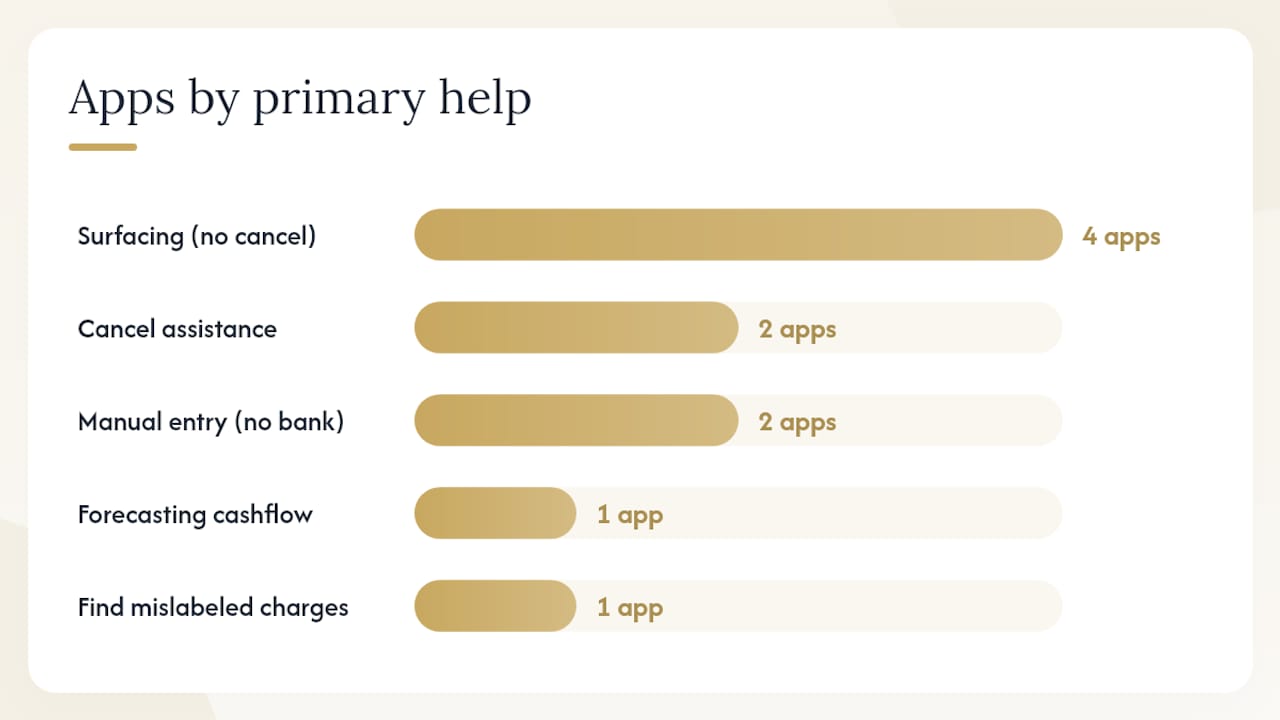
- Rocket Money and Hiatus are the two apps that go beyond detection and actually help you cancel. Rocket Money’s cancellation service handles the process on your behalf (Premium tier). Hiatus adds bill negotiation, which can reduce charges you decide to keep.
- Monarch Money, Simplifi, PocketGuard, and Empower are strong at surfacing recurring charges within a broader budget view, but they don’t cancel for you. You still need to go to each service or platform to cancel.
- Bobby and TrackMySubs/Subby are the right choice if you don’t want to link a bank account. You add subscriptions manually, set renewal reminders, and track costs without giving any app access to your financial data. The tradeoff is that you have to remember to add new subscriptions yourself.
- PocketSmith’s forecasting angle is genuinely different: it shows how your current subscriptions affect your cash flow over the next 6–12 months, which can make the cost of keeping multiple services more concrete.
- Origin focuses specifically on finding recurring charges that are mislabeled or easy to miss — useful if you’ve already done a basic audit and still suspect something is slipping through.
Common limitations across all apps: Auto-detection misses subscriptions billed through Amazon channels, Roku, or your cable provider because those charges often appear as a single line item from the platform rather than the individual service. No app catches everything. Manual verification against your bank statement remains the most reliable final check.
For shared or family accounts: Most of these apps work best for a single person’s finances. If you’re tracking a household, Monarch Money’s shared household feature or a simple shared spreadsheet tends to work better than trying to merge multiple bank accounts in a single-user app.
How to cancel major U.S. streaming services step by step
Streaming services design their cancellation flows to maximize retention, which is why the cancel option is often buried several menus deep. Here’s exactly where to find it for each major service.
Netflix
- Sign in at netflix.com.
- Click your profile icon → Account.
- Under “Membership,” click “Cancel Membership.”
- Confirm. You’ll keep access until the end of the current billing period.
Third-party billing: If you subscribed through Apple, Google Play, or a cable provider, cancel there instead — canceling on Netflix’s site won’t stop that charge.
Hulu
- Sign in at hulu.com.
- Click your profile → Account.
- Under “Your Subscription,” click “Cancel.”
- Work through the retention offers if any appear, then confirm cancellation.
Disney+
- Sign in at disneyplus.com.
- Click your profile icon → Account.
- Under “Subscription,” select “Cancel Subscription.”
- Confirm. Access continues through the billing period end date.
Amazon Prime / Prime Video
Canceling Amazon Prime stops Prime Video access along with all other Prime benefits. Go to amazon.com → Account → Prime Membership → “End Membership.” For Prime Video channel add-ons (e.g., Paramount+ through Amazon, Starz through Amazon), use the dedicated Prime Video cancel workflow: primevideo.com → Account & Settings → Your subscriptions → find the channel → Cancel Channel.
Max (formerly HBO Max)
- Sign in at max.com.
- Click your profile → Settings → Subscription.
- Select “Cancel Plan” and confirm.
If you subscribed through your cable or internet provider, you must cancel through them — Max’s own cancel option won’t apply.
Apple TV+
- On iPhone/iPad: Settings → [your name] → Subscriptions → Apple TV+ → Cancel.
- On Mac: App Store → your account → Subscriptions → Apple TV+ → Cancel.
- On Apple TV device: Settings → Users and Accounts → [your account] → Subscriptions.
Peacock
- Sign in at peacocktv.com.
- Click your profile → Account → Manage Plan → Cancel Plan.
Paramount+
- Sign in at paramountplus.com.
- Click your profile → Account → Cancel Subscription.
YouTube TV
- Sign in at tv.youtube.com.
- Click your profile icon → Settings → Membership → Cancel Membership.
Retention offers: When you start a cancel flow on Netflix, Hulu, Disney+, or Max, you’ll often see a discounted offer (typically 1–3 months at a reduced price). Accept it only if you genuinely plan to use the service during that period. Accepting restarts the full billing cycle, so set a calendar reminder for when the discount ends or you’ll be charged the full rate again.
Verify every cancellation: Look for a confirmation email. Log back into the service and check that the account page shows a future cancellation date rather than an active renewal. Then check your next bank statement to confirm the charge stopped.
How to cancel subscriptions billed through app stores, Amazon, Roku, and carriers
The most common reason a cancellation “doesn’t work” is canceling at the service when the billing runs through a platform. Always confirm the merchant name on your card statement and cancel at that billing source.
Apple App Store (iPhone, iPad, Mac)
- iPhone/iPad: Settings → tap your name → Subscriptions → select the subscription → Cancel Subscription.
- Mac: App Store → click your name (bottom left) → Account Settings → Subscriptions → Manage → Cancel.
- Apple TV: Settings → Users and Accounts → [your account] → Subscriptions.
Google Play
- Open Google Play → tap your profile icon → Payments & subscriptions → Subscriptions.
- Select the subscription → Cancel subscription → follow the prompts.
Amazon (“Your Memberships & Subscriptions” and Prime Video Channels)
- For Amazon-billed services: amazon.com → Account & Lists → Your Memberships & Subscriptions → Cancel.
- For Prime Video channel add-ons: primevideo.com → Account & Settings → Your subscriptions → Cancel Channel.
Roku
- Visit my.roku.com → sign in → My Account → Manage subscriptions.
- Select the channel subscription → Cancel subscription.
- Alternatively, on your Roku device: Home → highlight the channel → press * → Manage subscription → Cancel subscription.
Carrier billing (AT&T, Verizon, T-Mobile)
- Log into your carrier’s account portal or app.
- Look for “Add-ons,” “Services,” or “Subscriptions” in your account settings.
- If you can’t find it, call customer service and ask them to list all third-party charges on your account.
Pro Tip: If a subscription renewed within the last few days and you didn’t intend to renew it, contact the platform’s support immediately. Apple, Google Play, and Amazon each have refund request processes for recent accidental renewals — Apple’s is at reportaproblem.apple.com, Google Play refunds are requested through the Play Store order history, and Amazon refunds go through standard customer service.
After canceling through any platform, check the platform’s subscription page within 24 hours to confirm the status shows “Canceled” or a future end date. A confirmation email is a secondary signal — the platform page is the authoritative one.
Should you pause, downgrade, or cancel?
Not every service you’re reconsidering needs to be canceled outright. Major streaming platforms commonly retain account data including watchlists and viewing history for a period after cancellation, and some offer a pause feature that stops billing while preserving your profile.
| Situation | Best action | What happens to your data |
|---|---|---|
| Traveling or busy for 1–3 months | Pause (if available) | Profile and watchlist preserved; billing stops |
| Want to keep access but reduce cost | Downgrade to ad-supported tier | Full access continues at lower price |
| Finished a show, might return later | Cancel | Data typically retained for months; re-subscribe to restore |
| Never use it, no plans to return | Cancel | Data retained briefly, then deleted per service policy |
| Sharing with household, one person leaving | Remove that user’s profile | Billing unchanged; only that profile is removed |
Pausing makes sense for a short break of a few weeks to a few months. Netflix, Disney+, and Hulu have offered pause features, though the availability and duration limits vary and can change. Check your account settings for a “Pause” or “Put on hold” option before canceling.
Downgrading is the right move when you want to keep access but the current price feels high. Most major streamers now offer ad-supported tiers at $6–$8/month. Switching from a premium plan to an ad-supported one can cut your monthly cost by $5–$10 per service without losing access.
Canceling entirely is the right call when you haven’t used a service in the past month and have no specific show you’re waiting on. Most services retain your watchlist and history for several months after cancellation, so re-subscribing later usually restores your data. You’re not losing your queue permanently.
A rotation strategy — subscribing to one or two services at a time and rotating monthly based on what you want to watch — can reduce streaming costs significantly, but it requires active calendar reminders to avoid unwanted auto-renewals when you forget to cancel before the next billing date.
What subscription-manager apps can actually see — and how to limit your risk
Linking a bank account to an app like Rocket Money, Hiatus, or Empower gives that app read access to your full transaction history, not just your streaming charges. Most use Plaid or Finicity as the connection layer, which means a third-party aggregator also holds a copy of your data. App roundups consistently flag this tradeoff: bank linking speeds detection but increases data access, while manual-entry trackers avoid that risk at the cost of more work.
Steps to limit your exposure:
- Use read-only connections when the app offers them. Most reputable apps request read-only access, meaning they can see transactions but can’t move money. Verify this in the app’s permissions settings before connecting.
- Dedicate one card to streaming subscriptions. Move all your streaming charges to a single card, then connect only that card to the subscription-manager app. This limits the transaction data the app can see to one account.
- Check the app’s privacy policy before connecting. Look specifically for whether the company sells or shares transaction data with third parties, and whether data is deleted if you close your account.
- Consider manual-entry apps for sensitive accounts. Bobby and TrackMySubs/Subby require no bank connection at all. You enter subscriptions manually, which takes more time but keeps your financial data entirely off third-party servers.
Privacy-friendly alternatives that don’t require bank linking:
- Bobby (iOS): manual entry, local storage, no account required
- TrackMySubs / Subby: manual or semi-manual entry with renewal reminders
- A shared calendar with recurring events for each renewal date
- A simple spreadsheet listing service, monthly cost, renewal date, and billing source
The spreadsheet approach sounds basic, but it’s the one that catches everything — including Amazon channel add-ons and carrier-billed subscriptions that automated apps routinely miss.
DIY audit or subscription-manager app — which fits your situation?
| Approach | Setup time | Cost | Accuracy | Privacy risk | Handles third-party billing |
|---|---|---|---|---|---|
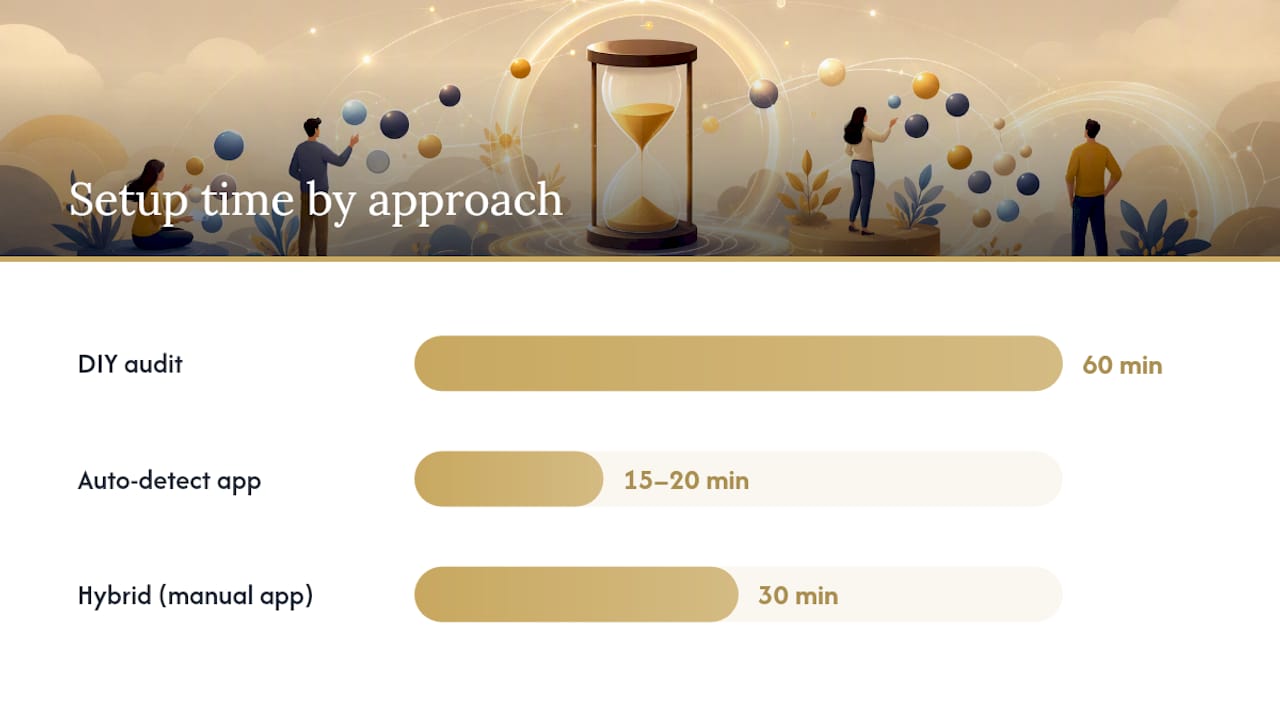
| DIY audit (checklist) | 60 minutes | Free | High (manual verification) | None | Yes, if you check all platforms |
| Auto-detect app (bank-linked) | 15–20 minutes | Free to ~$12/mo | Good (misses some platform charges) | Medium (bank data shared) | Partial |
| Hybrid (manual app + calendar) | 30 minutes | Free to ~$2 | High | Low | Yes |
Ask yourself these questions before installing an app:
- Do you want the app to cancel subscriptions on your behalf? If yes, Rocket Money or Hiatus are the only options that offer this.
- Are you comfortable linking your bank account or credit card? If not, Bobby or TrackMySubs/Subby are the right fit.
- Are you tracking subscriptions for a household with multiple people? A shared spreadsheet or Monarch Money’s household feature handles this better than most single-user apps.
- Do you want to see how your subscriptions affect your long-term budget? PocketSmith’s forecasting view is built for this.
- Do you suspect you have hidden or mislabeled recurring charges? Origin is specifically designed to surface those.
Third-party billing, bundle overlap, and account confusion are the primary obstacles to a clean cancellation — and no app handles all three automatically. The DIY audit catches all of them because you’re checking every billing source manually.
Next steps by path:
- DIY: Use the 60-minute checklist above, then set calendar reminders for every renewal date.
- App route: Download Rocket Money or Hiatus, connect your primary card, review detected subscriptions, and cancel from inside the app. Then manually check Amazon and Roku for charges the app likely missed.
- Hybrid: Use Bobby or TrackMySubs to log subscriptions manually, and run a quick bank-statement scan every 3 months to catch anything new.
How we evaluated these apps and verified cancellation steps
The cancellation steps in this article were verified using trial accounts on each major streaming service and by walking through the cancel flows on Netflix, Hulu, Disney+, Amazon, Max, Apple TV+, Peacock, Paramount+, and YouTube TV. For platform billing (App Store, Google Play, Amazon, Roku), steps were confirmed against each platform’s current support documentation.
App features were assessed by reviewing each app’s current feature listings, pricing pages, and published app-store descriptions. Auto-detection claims were cross-referenced against user reviews and third-party roundups including PCMag’s subscription app coverage.
Cancel flows and platform billing procedures change when services update their interfaces. This article is reviewed when major platform updates are announced or when a service changes its cancellation policy. If a step doesn’t match what you see, the service’s own support page is the authoritative source.
The subscription habits that actually stopped the waste
The rotation strategy gets recommended a lot, and it works — but only if you treat the cancel date as non-negotiable. The moment you tell yourself “I’ll cancel next week,” you’ve already lost $10–$15. What actually works is canceling the day you finish the show you subscribed for, not when you feel like it.
One habit worth copying: put all streaming subscriptions on a single dedicated card. Not for the app-linking benefit, but because it makes the monthly total impossible to ignore. When you see $87 on one card and every line item is a streaming service, the decision to cut becomes obvious in a way that scattered charges across two cards never are.
For households, the conversation about who pays for what is easier with a shared note than with a shared app. A note in Apple Notes or Google Keep listing each service, its monthly cost, and who covers it takes five minutes to set up and keeps everyone on the same page without requiring anyone to link their bank account to a third-party app.
On re-subscribing from FOMO: StreamTracker is a useful tool here. It tracks shows across services and alerts you when a new season drops, so you can re-subscribe for exactly the month you need rather than staying subscribed “just in case.” That’s a different tool class from a billing manager, but it solves the re-subscribe problem cleanly.
One more caution: retention offers feel like wins, but a 3-month discount at 50% off is still 3 more months of a service you were about to cancel. Accept them only when you have a specific show you plan to watch during that window.
Tired of juggling five separate streaming bills?
If the audit revealed you’re paying for five or six services to cover live sports, news, and on-demand content, there’s a simpler structure worth considering. Boomtv delivers over 6,500 live channels — sports, news, international programming, and a large VOD library including movies, TV shows, and PPV events — through a single monthly subscription with no long-term contract.

The contrast with the stack of individual subscriptions is straightforward: one bill, one login, and compatibility with Fire Stick, Android TV, smart TVs, tablets, phones, Kodi, PlayStation, Xbox, and computers. For households that watch a lot of live sports across multiple leagues and events, consolidating into a single IPTV plan often costs less than keeping three or four separate services active simultaneously. Boomtv includes 24/7 technical support and no bandwidth restrictions. Visit Boomtv to review current plan options and start a trial.
This article is general information, not a substitute for advice from a qualified financial advisor. Consult a qualified financial professional about your own circumstances before acting on anything here.
Sources
Official support pages and authoritative guides to use when performing cancellations:
- How to cancel every major video streaming service (Android Police)
- Subscription Prices Keep Going Up. These Apps Can Help You … (PCMag)
- Manage Amazon Subscriptions – Amazon Customer Service
- Don’t keep paying for expensive streaming services — here’s how to cancel them (CNET)
- How to Cancel Streaming Subscriptions (SubscriptionExit)
- StreamTracker — Track TV Shows Across All Your Streaming Services
After any cancellation, check your next bank statement to confirm the charge stopped. A confirmation email is a useful signal, but the bank statement is the definitive proof.